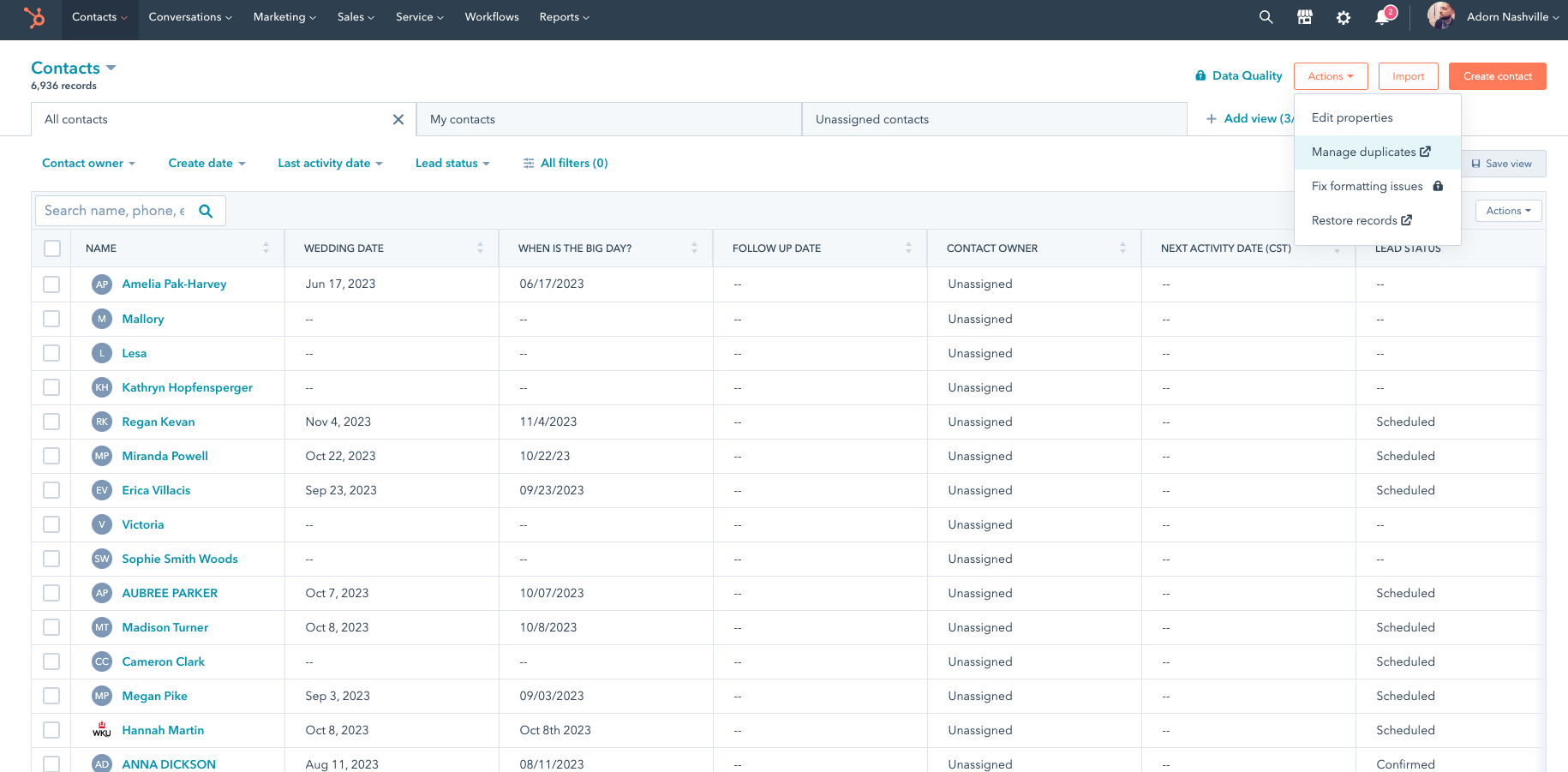
A few times a month, HubSpot will scan your portal for duplicates and you can view the recent duplicates by clicking Manage Duplicates under the Actions button.
You'll be redirected to the Duplicate Contact page. Click Review next to a contact that looks like they might be a duplicate and it will give you a closer look at the contacts so you can decide if they are actually duplicates or if you should leave them.
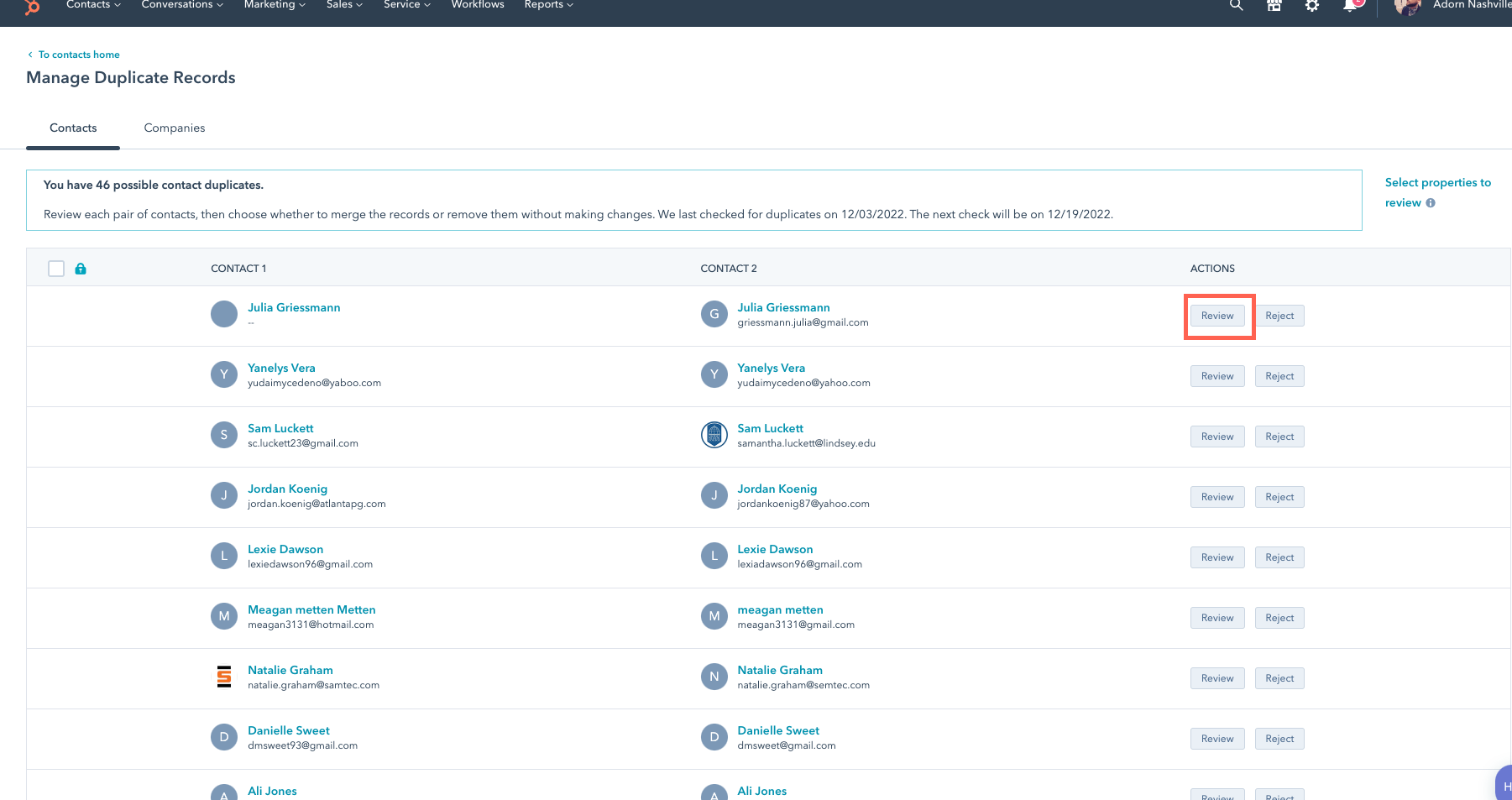
Here's what pops up when you hit Review.
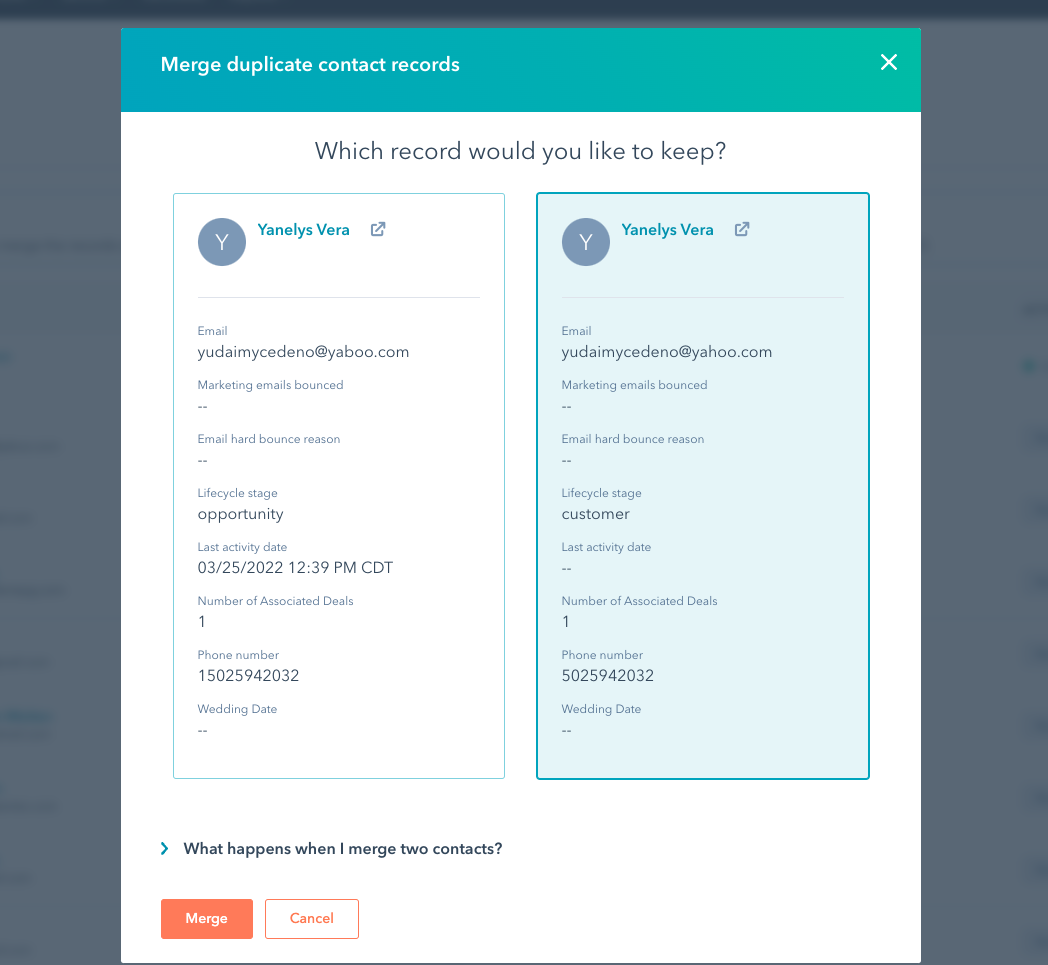 Generally, if the email address or the phone number are the same, you can assume they're a duplicate and hit Merge. If you aren't sure (maybe it's just a first name with no contact info), then hit Cancel in the popup and select Reject next to that contact.
 Be careful if there are deals involved, as those will need to get merged as well. If there are, then click into the contact to see if there are any duplicate deals. In this instance, our contact Yanelys now has two deals for the same dress purchase. We need to merge those deals, too.
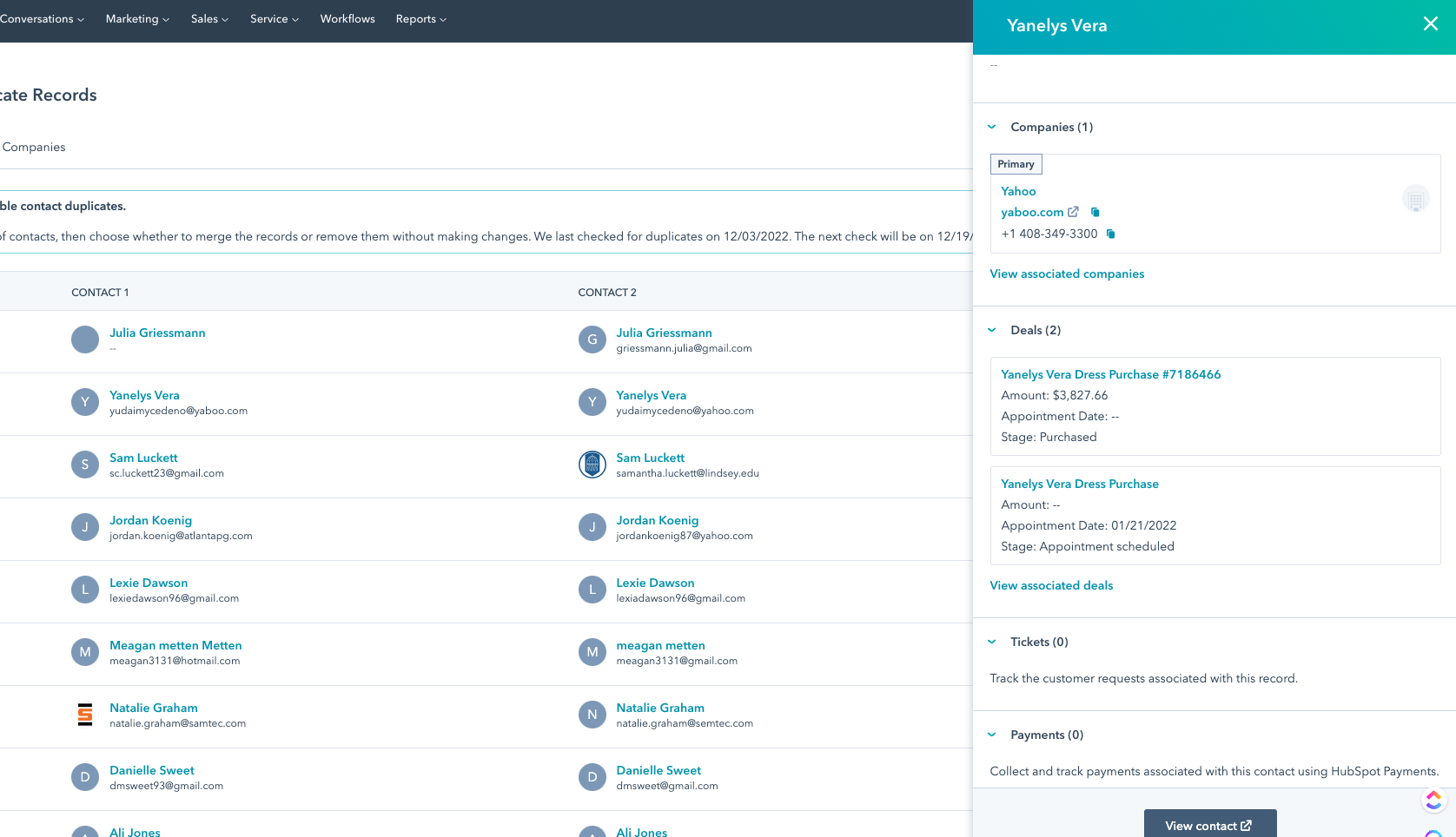
As you can see, there are 2 deals associated with the contact. The top deal has the bridal live transaction id in the name, so we know that's the deal we want to keep. Click the name of it to pull up the deal. Then we'll want to merge it with the duplicate deal.
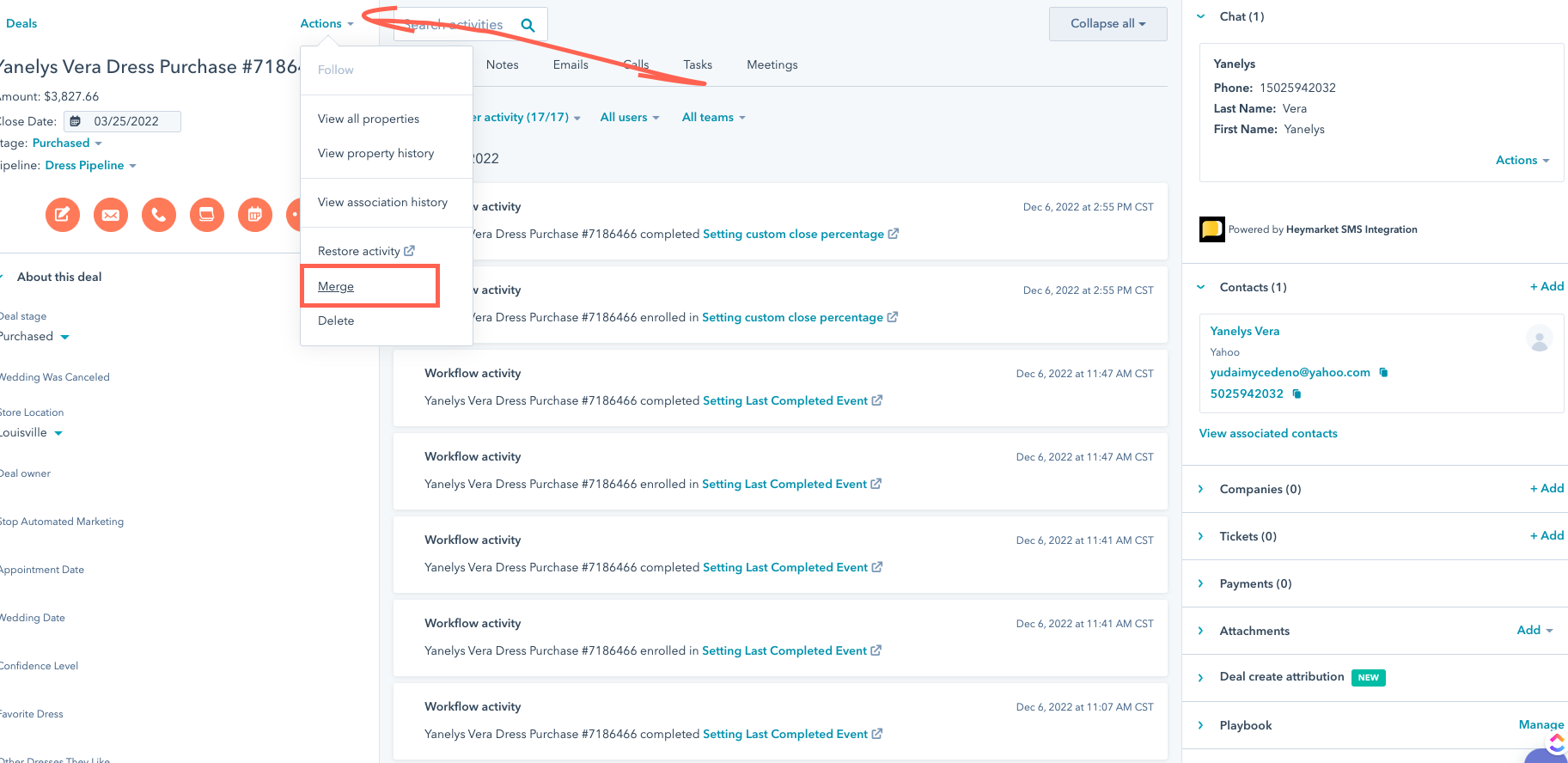
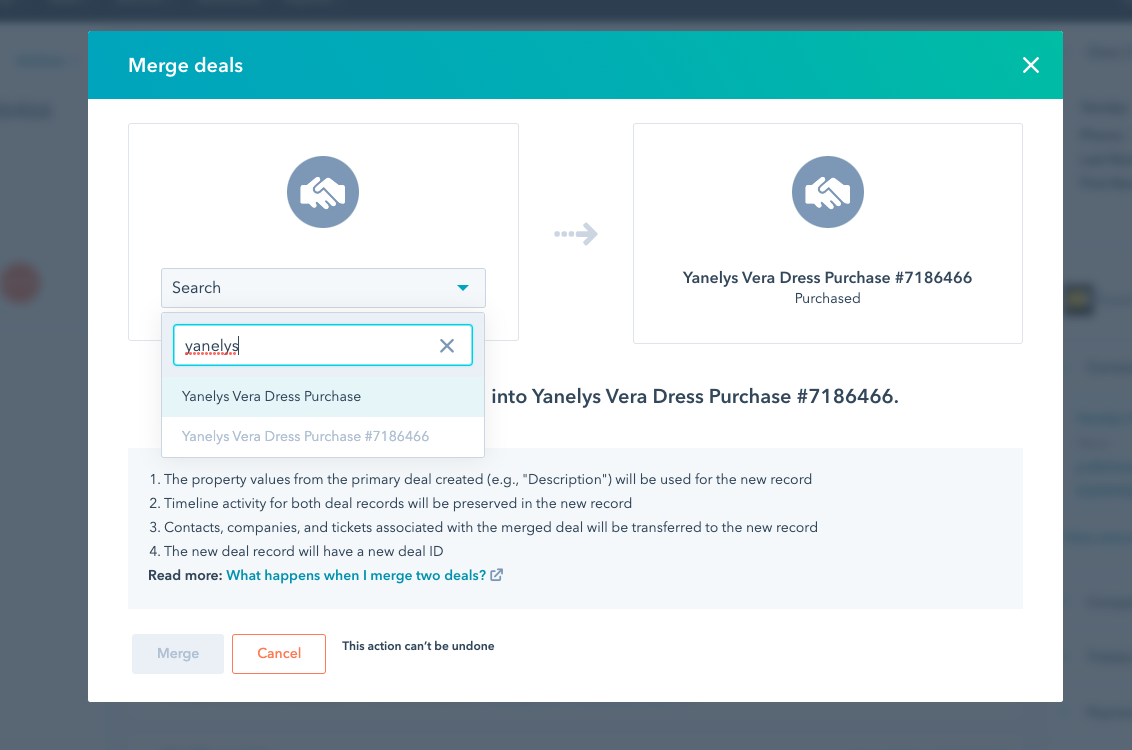
This will pull up another popup where you can search for the duplicate deal. Select it and hit merge.
Once the deal is merged, we want to check the following fields to make sure they're correct.
- Deal Owner
- Date First Appointment Completed
- Date Follow Up Appointment Completed
- Close Date
- Last Completed Event (which should generally be the latest of the previous 3 dates).
- Amount
- Close Rate
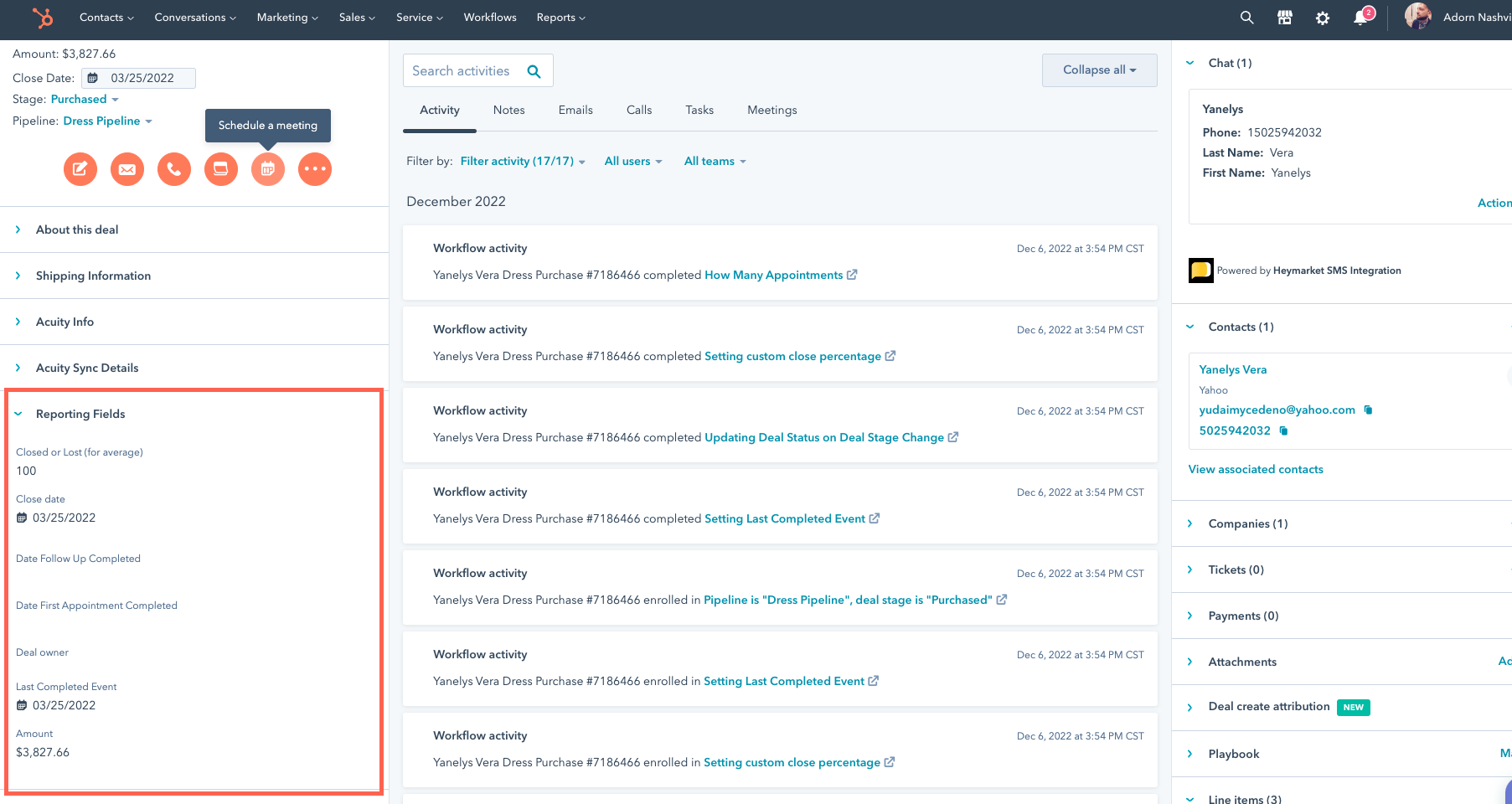
What you're primarily looking for is that none of these fields were overwritten in dumb ways that will hinder reporting. If you hover over the field, a detail button will appear. If you click that, you can see the history. If something was overwritten in a silly way because of the merge, update it in the record, hit save and then move on to the next duplicate.